S3 Data Transfer Cost - storage choices

4 Components of S3 Data Transfer Cost

This article provides a detailed overview of AWS S3 Costs Patterns and provides insights about different cost components.


S3 Data Transfer Cost

Amazon storage service is an object storage that is specifically designed to store & access data (of any type) over the internet. Amazon storage is completely secure, 99.99% durable, and can scale millions of applications for companies throughout the world.

Customers of all industries (no matter what size) can use Amazon S3 to store & protect any amount of data for a diverse range of use cases, such as backup/restore, mobile apps, websites, archives, enterprise-apps, IoT devices, AI/ML & big data analytics.

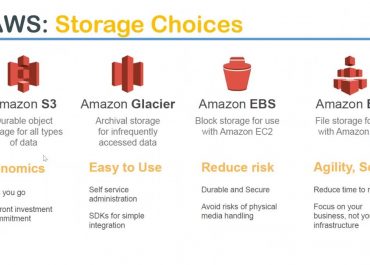
Amazon offers different storage choices for its users, including Amazon S3, Amazon Glacier, Amazon EBS, and Amazon EFS.

S3 Data Transfer Cost - storage choices

S3 Data Transfer Cost – storage choices


What is Amazon S3?

S3 Data Transfer Cost - amazon s3

S3 Data Transfer Cost – amazon s3

Amazon S3 is an object storage service built to store & retrieve any amount of data from anywhere on the Internet. Amazon S3 service is highly available, extremely durable, highly flexible, and offers unlimited data storage infrastructure at very low costs.


What can you do with Amazon S3?

Amazon S3 is an object storage service helping you develop applications that use internet storage. For this service, you need to pay for what you use. This means you can start small and can grow as per your business requirement. The S3 service ensures that there is no compromise on reliability and your application’s performance.

Amazon S3 is highly flexible. This means you can use it to store any type and amount of data that you want; read the same piece of data during emergency disaster recovery or as much as the time you want. You can also use it to build a simple FTP application or a sophisticated web application such as the Amazon.com retail web site.


How much does Amazon S3 Pricing?

The invoice for Amazon S3 is based on pay for what you use. You don’t need to pay any minimum fee for AWS S3. You can get an estimate of your monthly bill by using our CloudySave’s Cost Calculator.

S3 Data Transfer Cost - aws s3 pricing calculator

S3 Data Transfer Cost – AWS s3 pricing calculator

The cost of storage varies across Amazon S3 Regions. To choose the best S3 fit for your profile, you must consider the four cost components.

  • Storage pricing.
  • Request & data retrieval pricing.
  • Data transfer & transfer acceleration pricing.
  • Data management features pricing.

# Storage

With Storage, you pay for storing objects in your S3 buckets. Your billing varies on your objects’ size, for how long you stored the objects and your storage class. The following storage classes are available as of now:

  • S3 Standard,
  • S3 Intelligent-Tiering
  • S3 Standard – Infrequent Access
  • S3 One Zone – Infrequent Access
  • S3 Glacier
  • S3 Glacier Deep Archive
  • Reduced Redundancy Storage (RRS).

If you want to monitor access patterns & move objects between access tiers in S3 Intelligent Tiering, you need to pay monthly monitoring and automation fee per object stored in the S3 Intelligent-Tiering storage class. You can get an estimate of your costs using CloudySave’s Cost Calculator.


# Request and data retrievals
  • In this, you pay for every request you make against your S3 bucket and objects.
  • Your invoice is based on the request type as well as the number of requests made.
  • You also get charged for browsing facilitate requests such as GET, LIST, and more.
  • Charges are accrued at the same rate as requests that are made using the API/SDK.
  • Requests such as COPY, PUT, SELECT, LIST, Data Retrievals, Lifecycle Transition, Cancel, and DELETE are made for free.

However, if you’re trying to retrieve objects that are stored in S3 – Infrequent Access, S3 One Zone – Infrequent Access, S3 Glacier, and S3 Glacier Deep Archive storage, your overall billing will increase.


# Data Transfer

You will be charged for transferring data in and out of Amazon S3, except for the following:

  • Transferring data in from the internet.
  • Transferring data out to an AWS Elastic Compute Cloud (AWS EC2) instance when the instance is in the same AWS Region as the S3 bucket.
  • Transferring data out to AWS CloudFront.

There is no charge for transferring data between S3 buckets or from Amazon S3 to any service(s) within the same AWS Region. However, if you transfer data using Amazon S3 Transfer Acceleration, you’ll get charged for the request.


# Management and Replication

Management: You pay for storage management features such as Amazon S3 inventory, analytics, and object tagging.

S3 Data Transfer Cost - management and replication

S3 Data Transfer Cost – management and replication

S3 Replication pricing: For S3 replication, you pay the S3 charges for storage in the selected destination S3 storage class, the storage charges for the primary copy, replication PUT requests and applicable infrequent access storage retrieval fees.

S3 Data Transfer Cost -replication time

S3 Data Transfer Cost -replication time


How to get started with Amazon S3?

To start with Amazon S3, you must have access to AWS. If you’re not an active AWS user, you will be prompted to create an account, to begin with Amazon S3 sign-up process. Once you sign-up for Amazon services, ensure to go through Amazon S3 documentation as well as the sample code in the Resource Center. This documentation and sample code will help in using Amazon S3.

If in case, you’re planning to use S3 Storage services for data storage, ensure to go through its pricing structure to avoid hefty bills and any sort of confusion. Want to get more information on Amazon S3 or facing issues with S3 Data Transfer Costs, do let us know in the comment section. Our experts will definitely come out with the best possible solution for you.

See Also

AWS S3 LifeCycle Management

AWS S3 File Explorer

Create AWS S3 Access Keys

AWS S3 Bucket Costs

AWS Data Transfer Cost

S3 Crawlers on Glue Console

AWS S3 Cost Optimization


  • CloudySave is an all-round one stop-shop for your organization & teams to reduce your AWS Cloud Costs by more than 55%.
  • Cloudysave’s goal is to provide clear visibility about the spending and usage patterns to your Engineers and Ops teams.
EC2 Data Transfer Pricing

EC2 Data Transfer Pricing

EC2 Data Transfer Pricing

In the cloud-dominated world, AWS offers you 160 different services. You can use these services based on Pay-as-you-go, Save when you reserve, or Payless by using more approach.

Though the AWS lets you choose the best fit for your organization, you could still end up with complex, tangled bills if you don’t choose the right approach for your business.

Understanding the complex, tangled cloud bills would be no challenge, but an estimation of cloud cost and spiky surprises can be horrifying for fellas new to AWS and even for the most traditional, advanced users. To understand your cloud bills, you need to understand what does AWS data transfer costs mean.

What is AWS Data Transfer Cost?

AWS data transfer prices vary for transferring data in & out, to & from an AWS cloud service like EC2, S3, and the public internet. In simple terms, it’s the cost that AWS charges to transfer data:

  • Between AWS and the internet
  • Within AWS between services, including EC2 or S3

This means you have to pay for transferring data into one service from another AWS service and for transferring data out of the service to another one. The AWS data transfer prices vary from service to service. If you’re planning to use AWS services, it’s important for you to know that AWS Data Transfer costs fluctuate on the basis of regions or zones.

You can reduce the AWS Data Transfer Cost by choosing Amazon EC2 computing capacity based on your organization’s necessity.

What is EC2?

Amazon Elastic Compute Cloud is a web-based service that allows businesses to run application programs in the AWS public cloud. It provides compute capacity for IT projects and cloud works that run with global AWS data centers.

EC2 Data Transfer Pricing

AWS Free Tier – The basic version of EC2 Data Transfer is available for free. If you’re using AWS Free Tier, you get access to 750 hours/month of Linux as well as Windows t2.micro.

You can only use EC2 Micro Instances with the Free Tier.  

If you want to increase your capacity, you can choose any of these Amazon EC2 instances based on your requirement:

  • On-Demand
  • Saving Plans
  • Reserved Instances
  • Spot Instance
  • Dedicated Hosts


#1. On-Demand

This instance lets you pay for the compute capacity on an hourly basis. There are no hidden longer-term commitments or upfront payments. The cost can increase or decrease based on your compute capacity demand. Moreover, you don’t need to pay for the costs and complexities of planning, purchasing, and maintaining hardware.

On-Demand instances are best suited for:

  • Applications developed or tested on EC2 for the first time
  • Applications with spiky, short-term, or unpredictable workloads that cannot be interrupted
  • Users that prefer services with no hidden charges


#2. Spot instances

With Spot Instances, you can request additional Amazon EC2 computing capacity and that too at a discount of 90% off compared to On-Demand price. The Spot Instances price can increase gradually based on long-term trends in supply and demand for Spot Instance capacity.

Spot instances are recommended for:

  • Applications with flexible start and end times
  • Applications feasible at very low compute prices
  • Users that have urgent computing requirements for large amounts of additional capacity

Check its prices here!

#3. Saving Plans

Saving Plans offer a flexible pricing model with up to 72% saving on your AWS compute usage. You can use Amazon EC2 instances at lower prices, regardless of instance family, size, OS, tenancy or AWS Region. This also applies to AWS Fargate and AWS Lambda usage. You can easily avail this flexible pricing model, in exchange for a commitment to a consistent amount of usage (measured in $/hour) for a 1 or 3-year term.


#4. Reserved Instances

With Reserved Instances, you can enjoy Amazon EC2 computing capacity at up to 75% discount in comparison to ‘On-Demand’ instance pricing. Moreover, when you choose Reserved Instances, you get a capacity reservation. You can purchase Reserved Instances for one year or three-year long-term. You also have the flexibility to change the Availability Zone, the instance size, as well as the networking type of the Standard Reserved Instances.

Reserved Instances are recommended for:

  • Steady-state usage applications
  • Applications that may require reserved capacity
  • Users that need EC2 for over a 1 or 3-year term to reduce their total computing costs


#5. Dedicated Host

Dedicated hosts lower your cost as it allows you to use your existing server-bound software licenses. You can use any of your SQL Server, Windows Server, and SUSE Linux Enterprise Server. It can also help meet your compliance requirements. Dedicated Host allows you to pay on an hourly basis for each active Dedicated host. And if you choose Dedicated host reservation, you can use Amazon EC2 computing capacity with a discount of up to 70% compared to On-Demand pricing.

 We hope this article will help you make a better decision in choosing EC2 instance to reduce the overall cost transfer data prices. Want to know more about AWS services, do let us know in the comment section below!

aws ec2 scheduling 


AWS Competency Program

AWS Competency Program

This program is designed to highlight APN Partners who have demonstrated technical proficiency and proven customer success in specialized solution areas. AWS Competency provides an opportunity for AWS partners to showcase their expertise and differentiate themselves from customers.

AWS Competency Program - workload

AWS Competency Program – workload

AWS Competencies By Industry

AWS Competency Program supports various industries such as:

1. Education – AWS Education Competency Partners offers various resources for teaching and learning, administration, and academic research efforts in education.

2. Public Safety and Disaster Response – These AWS Partners have been developing and delivering solutions to help customers to prepare, respond, and recover from emergencies and natural or man-made disasters. The solutions offered by AWS Partners ensure the safety and security of the community.

3. Nonprofit – These competency partners have been providing end-to-end resources to encourage social change.

4. Digital Media – The media competency partners are helping media and entertainment companies by offering solutions that help in the creation, distribution, and management of digital content.

5. Financial Services – These competency Partners have deployed the solutions with best AWS practices and have staff with AWS certifications.

AWS is not limited to only these industries. The AWS Competency program also assists the Government, healthcare, life sciences, Industrial software, digital customer experience, and retail.

AWS Competencies by Application

AWS Competency Program - by application

AWS Competency Program – by application

The AWS Competency has been successfully offering applications for IoT, Migration, Storage, Security, Data and Analytics, DevOps, Machine Learning, Cloud management tools, Networking, End-user computing, and Networking, etc. You can visit here https://aws.amazon.com/partners/competencies/ to get complete information about these ASW competency programs.

AWS Competencies By Workload

In terms of workload, AWS Partners has also supported Oracle, SAP, and Microsoft Workloads. Visit here https://aws.amazon.com/partners/competencies/ to get complete information about the competency requirement of each partner.

Benefits of AWS Competency Partner

You’ll receive all the benefits you receive as an APN member. In addition to this, you’ll get some valuable benefits, including:

Visibility and go-to-market activities

  • You can create customer references with the APN team
  • You get eligible to be featured on the APN Blog and APN social channels
  • You get a partner badge for AWS Competency achievement
  • You can participate in APN Marketing activities and co-branded marketing campaigns
  • Get priority in AWS Analyst Relations communications and briefings

Market development funds and discounts

Drive customer acquisition

Selective eligibility benefits

Event-specific benefits

  • Exclusive onsite benefits at AWS events
  • Exclusive access and participation in AWS Competency Events and Solution Showcase

How to get started with AWS Competency Program?

To start with AWS Competency, APN Partners must have a strong practice in AWS and can showcase customer success and demonstrate technical readiness within the Competency.

1. Meet APN Tier Requirements

In order to apply for AWS Competencies, partners must meet APN Advanced or Premier tier requirements to apply for AWS Competencies. Make sure that your firm’s Partner Scorecard is up-to-date. Follow these steps to apply for your APN Upgrade.

AWS Customer References

You can get Competency Customer References from the Partner Scorecard. These references can either be public (such as a white paper, case study, or customer quote) or non-public. You can submit Customer References by following the below steps:

  1. Log in to the APN Portal
  2. Click on “View My APN Account”
  3. Select “New” by clicking on “Under References”
  4. Select “submit” after adding project details

AWS Support (Business Level)

You can visit here to sign up for AWS Support.

AWS Training

Partners get discounts on AWS Instructor-Led Training by registering through the APN Portal.

Follow the below-mentioned steps to sign-up for courses:

  1. Log in to the APN Portal
  2. Click on the “Training” tab
  3. Select a course and register

AWS Certifications

APN Partners can get access to certifications here.

APN Tier (Select [formerly Standard], Advanced or Premier)

Once your Partner Scorecard is up-to-date, it’s time to upgrade your firm’s APN membership by following these steps:

  • Log in to the APN Portal
  • Click on “View Partner Scorecard”
  • Submit APN Partner compliance details
  • Click “Apply to Upgrade”

2. Select AWS Competency

This is about differentiating your practice, product, or solution on AWS.

Review AWS Competencies

You need to decide which competency best suits your organization. You can review any competencies relevant to your industry, solution, and workloads.

Download Validation Checklist

Once you choose your competency, download its validation checklist and check its requirements. Make sure that your organization meets all requirements listed on the Validation Checklist for Competency.

AWS Customer References

AWS Competencies need four AWS customer references specific to the competency. Submit your customer references and project details at the time when you apply for the AWS Competency. For required public AWS customer references, you will need to submit a public case study, whitepaper, or blog post that details your work on AWS with the customer.

3. Apply for AWS Competency

Once your firm meets all the requirements mentioned by the Validation Checklist, follow the steps below to submit your AWS Competency application:

Apply for AWS Competencies:

  • Log in to the APN Portal
  • Click “View My APN Account”
  • Select your Competency track
  • Complete Competency Application
  • Email completed Self-Assessment to competency-checklist@amazon.com

As part of the Competency Application, you will be requested to provide details about your solutions and customer deployments related to the Competency.

So if you want to be a part of the AWS Competency Program, ensure to check all the requirements of competencies and fulfill them as per the validation checklist. Want to know more about the Competency program? Stay tuned to our blog!

See Also

AWS Quick Starts

AWS S3 Lifecycle Policy

How to implement AWS S3 Lifecycle Policy

Implementing AWS S3 Lifecycle Policy

This article provides a detailed overview of implementing AWS S3 Life-Cycle Policy and how they can assist in minimizing data loss. At the end, you’ll get a better understanding on retaining and keeping critical data completely secured leveraging S3 lifecycle policies.


Minimizing Data Loss: Implementation of Lifecycle Policies

Why go with Lifecycle Policies?
  • Lifecycle policies in S3 are one of the best ways of making sure that all data is being maintained and managed within safe environment.
  • Without undergoing any unwanted costs, the data is being cleaned up and deleted the moment when it is no longer required for use.
  • Through lifecycle policies, you will get the chance to directly review objects found inside the S3 Buckets you own & migrate them to Glacier (or) instead delete the objects permanently from the bucket.

LifeCycle Policies are typically used for the following reasons:

  • Security
  • Legislative compliance
  • Internal policy compliance
  • General housekeeping

With the implementation of some good lifecycle policies you will receive the following advantages:

  • Improved data security.
  • Ensure that no retainment of sensitive information is being made for a time far longer than what is necessary.
  • Easily archive data into Glacier storage class leveraging few extra security features whenever required.

Glacier: This class is mainly used as a cold storage solution for any type of data that might be retained once in a while. This class is commonly used as cheap storage service compared to that of S3.

  • Lifecycle policies are implemented at the Bucket level and can have up to 1000 policies per Bucket.
  • Different policies can be set up within the same Bucket affecting different objects through the use of object ‘prefixes’.
  • The policies are checked & ran automatically — no manual start required.
  • Be aware that lifecycle policies may not immediately executed after initial set-up as the policy need to propagate across the AWS S3 Service. Very important when starting to verify your automation is live.

These policies are implemented either AWS-Console (or) S3 API.


How to set a Lifecycle Policy via AWS-Console?

The process of setting up a lifecycle policy within S3 can easily be done through the following couple of steps:

  • Sign into the Console and choose ‘S3’.
  • Go to the Bucket which you would like to implement the Lifecycle Policy for.
  • Click on ‘Properties’ and then ‘Lifecycle’.
AWS S3 Lifecycle Policy - how to set a lifecycle policy

AWS S3 Lifecycle Policy – how to set a lifecycle policy

  • Start adding all the rules that you would like to make for your policy. As seen in the picture above we have no rules that are set up yet.
  • Select Add rule.
AWS S3 Lifecycle Policy - lifecycle rules

AWS S3 Lifecycle Policy – lifecycle rules

  • Now you may start setting up a policy for Whole Bucket or simply for a prefixed object(s). For choosing prefixes, various policies may be set up inside the same Bucket.
  • A prefix may be set for a subfolder inside the Bucket, or a selected object, that may offer you better refined set of policies.
  • For our example here, let’s choose Whole Bucket then click on Configure Rule.
AWS S3 Lifecycle Policy - configure rules

AWS S3 Lifecycle Policy – configure rules


Here we will get three options to pick one from:

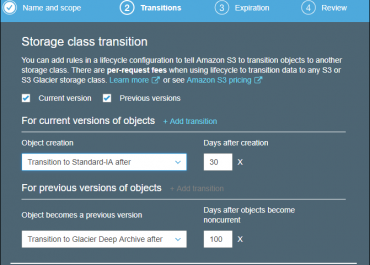
  • Moving your object to Standard – Infrequent Access
  • Archiving your object to a Glacier
  • Permanently Deleting your object

For example, let’s choose Permanently Delete. Sometimes, for Security reasons, you might need this data to be removed after the passing of two weeks from its creation date, so enter the number of days and click on Review.

AWS S3 Lifecycle Policy - permanently delete

AWS S3 Lifecycle Policy – permanently delete

  • Choose a name for your rule then review everything. If you find that all is well, select Create and Activate Rule
  • Under Lifecycle section you shall see the new rule which has just been created by you.
AWS S3 Lifecycle Policy - lifecycle add rules

AWS S3 Lifecycle Policy – lifecycle add rules

  • The objects will start adopting this newly created policy for all objects within that Bucket & force the rules upon them.
  • In case there were any objects in your Bucket that is older than the number of days you’ve chosen, they are directly going to be deleted the moment that the policy gets propagated.
  • If new objects are created inside the bucket the same day now, it shall be deleted automatically after the passing of your number of selected days.

By this measure, you can make sure that no sensitive or confidential data is being saved unnecessarily. It will also pave way to the reduction of costs through automatically getting rid of unnecessary data from your S3 bucket. This then makes it a win-win situation.

  • In case you went with the option of archiving your data into a Glacier for specific archival reasons, you would have been able to make use of having cheap storage, of $0.01 per Gig, in comparison with S3.
  • By this you may have been able to get the chance to keep a tight security throughout the utilization by IAM user policies and Glacier Vaults Access Policies (accepts or rejects access requests coming from various users).
  • Glacier will also pave way for the availability of WORM compliance, Write Once Read Many option, by using a Vault Lock Policy. It essentially steps out to freeze your data and deny the possibility of any future changes being made.

Lifecycle policies will aid you in your quest to manage and automate the life of objects that are stored in S3, whilst at the same time, ensuring compliance. Those policies allow the possibility of selecting cheaper storage options. Also, at the same time, it lets you adopt even more security control from the Glacier class.


Here are few awesome resources on AWS Services:
AWS S3 Bucket Details
AWS S3 LifeCycle Management
AWS S3 File Explorer
Setup Cloudfront for S3
AWS S3 Bucket Costs
AWS S3 Custom Key Store

CloudySave helps to improve your AWS Usage & management by providing a full visibility to your DevOps & Engineers into their Cloud Usage. Sign-up now and start saving. No commitment, no credit card required!

cloud unit cost

Why and how to track unit cost in the cloud

Why and how to track unit cost in the cloud


There are times when you need the big picture and there are times when you need the details.  When it comes to the cloud, focusing too much on the big picture and too little on the unit cost can lead to inefficiencies in cloud spending.


The drawbacks of the billing dashboards

All the main cloud providers, including Amazon Web Services (AWS), Microsoft Azure and Google Cloud Platform, provide billing dashboards.  These sometimes go by other names (for example Cost Explorer) but the basic idea is the same.  They give you an overview of the services you use which enables you to see the overall cost of your cloud usage.

cloud unit cost - drawbacks

cloud unit cost – drawbacks

Unfortunately, these billing dashboards only tend to provide information at a very high level.  For example, you can expect to be able to see the nature of the service (for example computing, storage or networking), but not the specific environment in which it is being used (for example development, staging or production) as the boundaries of the services are generally not identified, or at least not clearly enough for any sort of meaningful analysis.


If, as is often the case, you have different services or applications running on the same instance (or using the same database services), then the situation becomes even more confusing.  For the most part, it’s likely to be effectively impossible to calculate standard business metrics with any degree of certainty, let alone accuracy.  This means that the average business essentially has to take its best guess about key metrics such as business unit costs, costs by order, costs per customer, costs by subscription and so forth.


You need to go deeper than an overview of cumulative cloud spending

An overview of cumulative cloud spending can be useful in some situations, but there is a limit to the amount of insight it can provide.  If you want to gain a real understanding of where your cloud spend is going and what it is achieving (or not), then you need to get down to the unit costs.  That is the only way to gain clarity about the cost-efficiency and profitability of the cloud environment.

Getting down to the unit costs

Your source data for calculating unit costs is system logs plus reports showing details such as spending breakdown, utilization metrics, and performance data.  When used properly, these can then be broken down into their components and re-consolidated into relevant units such as cost per user, cost per transaction or cost per source of revenue.


The trick to making this happen is to make sure that all of the necessary reports are tagged in such a way that they link back to a deployment item, either directly or, more commonly and usually more effectively, through a chain.  For example, you would have each tag link back to a component of a deployment item and these would then ultimately lead back to the deployment item and be used to calculate unit costs.


It’s entirely up to you how intensive you want to be with your tagging.  Sometimes it takes a bit of trial and error to find the sweet spot where you have sufficient detail without getting into tagging overload.  It is, however, important to remember that any changes to tags are, currently, only applied to reports produced after the changes are made.  In other words, they are not applied retrospectively.


For completeness, if you are using more than one cloud, then you will need to familiarize yourself with the tagging rules in each of them so you can implement a single tagging system which works across all of them and thus makes it possible to calculate the unit cost of any given project, product or service, even when that deployment item works across more than one cloud and hence more than one pricing model.


Putting financial staff and technical staff on the same page

In principle, this approach should give financial staff all the information they need to manage cloud spend effectively.  In practice, financial staff may not have the technical knowledge to understand why money is being spent where it is.  Likewise, technical staff may not have the financial knowledge to understand why the finance team is questioning where they are spending their money.


By using effective tagging to connect costs to deployment items (and their components), both financial staff and technical staff get the same information presented in a way that makes sense to both groups and hence facilitates meaningful analysis and discussion from both a financial and a technical perspective.

cloud spend forecast

AWS Quick Starts

AWS Quick Starts

AWS Quick Starts

The AWS solutions are deployed with the help of AWS Quick Starts. The AWS solutions partners or architects use best practices to design each Quick Start. They use the best practices for security and high availability of AWS Quick Starts.

Advantages of Using AWS Quick Starts

Quick Starts can help save you time by eliminating hundreds of manual installation and configuration steps in the deployment of key technologies on the cloud.

Here are some of the advantages of using Quick Starts:

  • They allow you to deploy the technology on AWS within no time and minimum efforts.
  • You can use Quick Starts patterns and practices as a baseline to develop your solutions.
  • It accelerates your deployment solutions for your customers by using the default automation or by stacking on top of existing Quick Starts.

How much does it cost to deploy a Quick Start?

There is no hidden fee for Quick Start. However, you need to pay for the AWS services you use while running Quick Start reference deployments as well as the license fees.

You can check pricing pages to get full pricing information on the AWS services that the Quick Start uses.

Make sure to set up the AWS Cost and Usage Report to track costs associated with the Quick Start after deploying the Quick Start.

How much time does it takes to deploy a Quick Start?

AWS Quick Start allows you to deploy a fully functional architecture in less than an hour. However, some Quick Start references can take a longer time. The time required to create a fully functional architecture depends on the scope of the deployment. You can visit the Quick Start catalog to get information about deployment times for specific Quick Starts. It is important to know that the estimated deployment times do not include the setup and configuration of any technical prerequisites.

What all technologies are supported by a Quick Start?

AWS Quick Starts provide automated deployments for various technologies including compliance, DevOps, and Amazon Connect integrations. It also includes:

The Quick Start catalog also includes Quick Starts for technologies from SAP, Microsoft, and Oracle, as well as Quick Starts for security, blockchain, machine learning, data lake, and big data and analytics technologies. Some other technologies that AWS Quick Starts support are:


You can visit the Quick Start catalog to get information about the complete list of automated reference deployments.

How to build a Quick Start?

To get started to build a Quick Start, you need to set up your GitHub account as mentioned in the Prerequisites section. If you haven’t used GitHub before, you must learn GitHub command and concepts and pay proper attention to the below-mentioned sections:

Once you learn about all the commands and concepts of GitHub, it’s time to set up your deployment environment.

  • For an IDE, use Visual Studio with AWS Tools, Atom, Sublime Text, or Visual Studio Code.
  • For source control, use Git, GitHub.com, or SSH keys.

Note: Make sure to learn about JSON or YAML.

How to use the Quick Start GitHub organization?

You need to visit AWS Quick Starts to access the GitHub organization. Once you get approval for Quick Start, your private GitHub repository will be created, offering access to all the content available there. You to create pull requests to commit code into this repository. Once your development work and testing is complete and the Quick Start is ready for publication, your private GitHub repository will be public. To know more about Quick Start prerequisites, visit here!

What should you know about the GitHub license?

Your licensing requirements vary on the Quick Start program you choose. Most of the Quick Start reference deployments work on BYOL (Bring Your Own License) model. This offers you a chance to use your existing licenses for Microsoft software, SAP HANA, and more. You might need to pay an additional software licensing fee if you use this model to move your existing workload to the AWS Cloud.

To get licensing information for more information about using your existing licenses for Microsoft technologies, you can visit here Microsoft License Mobility program.

aws saas factory