AWS S3 Inventory Pricing

Amazon S3 inventory Pricing?

This article provides a general overview of AWS S3 Inventory Pricing, and also highlights a few details in general.


What is S3 Inventory?

  • It’s one of the tools that are provided by S3 for aiding users to manage storage. It may be utilized for reporting & auditing the status of objects for requirements of regulatory, compliance, business & compliance types.
  • S3 inventory offers output files of the following types: CSV, ORC or Parquet. Those output files will list objects along with their associated metadata every day/week for a specific shared prefix (or) an S3 bucket.
  • Customers are even capable of reporting the Intelligent-Tiering access tier as a metadata field within their inventory reports free of charge.

It’s now possible for customers to utilize S3 Inventory for reporting every object that is stored in the S3 Intelligent-Tiering storage class. The newly created storage class has the following characteristics:

  • Simplifies the reduction of costs on storage for both IT infrastructure managers & developers.
  • Does not allow for loss of availability or performance.
  • It gets the job done by storing objects in either 1 of the following access tiers:
    > Tier optimized for Frequent access
    > A less expensive tier optimized for Infrequent access.

It is now possible for users to rely on S3 Inventory to view Intelligent-Tiering objects in any Region. To set and configure your S3 Inventory, you can use one of the following:

  • S3 Management Console.
  • API
  • CLI
  • SDK

Charges will be allocated by storing objects in S3 buckets, depending on the following:  

  • Size of the objects.
  • Monthly period of storing the objects.
  • Chosen storage class (Glacier, and Glacier Deep Archive, Standard and Standard – Infrequent Access, Intelligent-Tiering, One Zone – Infrequent Access, and RRS).

Charges are incurred every month for automation/monitoring for every object which gets stored in Intelligent-Tiering class. Also, moving objects in between access tiers & monitoring access patterns. 

  • Lifecycle rules for moving your data into whatever storage class you choose, as well as COPY and PUT will get per-request ingest fees.
  • Let the transition or ingest cost be taken into consideration prior to the act of moving objects into whatever storage class you choose.

All the costs referred to below are considered with US-East-2(Ohio) region.

  • Charges incurred for Storage management features such as analytics, object tagging & S3 inventory that is enabled on your account’s buckets.
  • S3 Storage Management will be priced according to every feature.
    > S3 Inventory————————————$0.0025 per million objects listed
    > S3 Analytics Storage Class Analysis———-$0.10 per million objects monitored/month
    > S3 Object Tagging——————————$0.01 per 10,000 tags/month
  • All your files that get generated using the S3 Inventory/S3 Storage-Class-Analysis-exports will be stored in one of the selected S3 buckets. Those files will also undergo S3 Standard storage charges.
Storage TypesStorage pricing
S3 Standard - General purpose storage for any type of data, typically used for frequently accessed data
First 50 TB / Month$0.023 per GB
Next 450 TB / Month$0.022 per GB
Over 500 TB / Month$0.021 per GB
S3 Intelligent - Tiering * - Automatic cost savings for data with unknown or changing access patterns
Frequent Access Tier, First 50 TB / Month$0.023 per GB
Frequent Access Tier, Next 450 TB / Month$0.022 per GB
Frequent Access Tier, Over 500 TB / Month$0.021 per GB
Infrequent Access Tier, All Storage / Month$0.0125 per GB
Monitoring and Automation, All Storage / Month$0.0025 per 1,000 objects
S3 Standard - Infrequent Access * - For long lived but infrequently accessed data that needs millisecond access
All Storage / Month$0.0125 per GB
S3 One Zone - Infrequent Access * - For re-createable infrequently accessed data that needs millisecond access
All Storage / Month$0.01 per GB
S3 Glacier ** - For long-term backups and archives with retrieval option from 1 minute to 12 hours
All Storage / Month$0.004 per GB
S3 Glacier Deep Archive ** - For long-term data archiving that is accessed once or twice in a year and can be restored within 12 hours
All Storage / Month$0.00099 per GB


S3 Replication pricing

In S3 Same Region Replication & Cross-Region Replication, S3 charges are going to be paid for the following:

  • Storage retrieval fees for Infrequent access.
  • Storage in the selected destination S3 storage class.
  • Replication PUT requests.
  • Primary copy storage charges

The following are a few additional details incurred with S3 charges

  • S3 Replication Time Control: The charges incurred for S3 Replication Metrics along with the Replication Time Control Data Transfer fee. The two will be billed at similar rates as those of the AWS CloudWatch custom metrics.
  • CRR: The charges incurred for inter-region Data Transfers OUT from S3 to the destination region.
  • Storage + PUT request for replicated copy Pricing: According to destination Region
  • Inter-region data transfer Pricing: According to source Region.
    > S3 Replication Time Control data transfer————$0.015 per GB
  • S3 Replication Time Control Data Transfer pricing will be the same for all AWS Regions.
  • S3 Replication Time Control can be used in all commercial Regions excluding the ones below as of now.
    > China (Beijing) Region
    > China (Ningxia) Region
    > GovCloud (US) Regions

Here are a few awesome resources on AWS Services:

AWS S3 Bucket Details

AWS S3 LifeCycle Management

AWS S3-EC2 Transfer Costs

Setup Cloudfront for S3

AWS S3 Bucket Costs

AWS S3 Custom Key Store

  • Cloudysave’s goal is to provide clear visibility about the spending and usage patterns to your Engineers and Ops teams.
  • Have a quick look at CloudySave’s Cost calculator to estimate real-time AWS costs.
Posted in S3

AWS S3 Inventory Configuration

Go through the following steps to learn how to get your S3 inventory configured:

For configuring inventory:

Keep in mind

Your first report is capable of taking up to 48 hours to be completed.

1.  Login to the Management Console and head to the S3 console using the following link https://console.aws.amazon.com/s3/.

2. From Bucket name list, select which bucket you’d like to get its S3 inventory configured.

S3 Inventory Configuration - bucket name

S3 Inventory Configuration – bucket name

3. Click on Management tab, then select Inventory.

4. Click on Add new.

5. Enter a specific name for your inventory then get it set up this way:

    • You are capable of adding filter prefix to the objects that are inventory only and have names starting with similar strings.
    • Select which destination bucket where you’d like to save your reports. Your chosen destination bucket needs to be located in a similar Region as that of your bucket which is getting its inventory set up, but it is capable of being in a differing account.
    • You are capable of selecting for your destination bucket a prefix.
    • Select the frequency of generating inventory.


6. For Advanced settings, it’s possible to specify the below:

– Select ORC, CSV or Parquet as an inventory output file format.

S3 Inventory Configuration - advanced settings

S3 Inventory Configuration – advanced settings


– For the sake of adding every single version of objects in inventory, select the option Include all versions from the the Object versions list. Your inventory will contain by default, merely the objects’ current versions.

– As for the Optional fields, choose 1 or more from the below for including in your inventory report:

Size 

Last modified date 

Storage class 

ETag 

Multipart upload  

Replication status  

Encryption status  

S3 Object Lock configurations: Status for Object Lock of your object, which contains the below settings:

1. Retention mode: Level of protection (Governance or Compliance).

2. Retain until date 

3. Legal hold status 


– In the section of Encryption, select either a server-side option or None:

      • None: No inventory report encryption.
      • AES-256  
      • AWS-KMS 

Keep in mind

For the sake of encrypting your inventory list file using the option SSE-KMS, you will need to give S3 the appropriate permission for utilizing the KMS CMK. 

4. Click on Save.

Policy for your Destination Bucket:

S3 tends to get a bucket policy created on your destination bucket which will give S3 the appropriate write permission, which is going to enable it with writing data for inventory reports to your bucket. In the case of an error occurring upon trying to get the bucket policy created, the required instructions are going to be supplied to you to learn the way of fixing it. 

This means that in case you select a destination bucket that is located in a different account without having the necessary permissions for reading and writing to this bucket’s policy, you are going to get this message shown on the screen:

S3 Inventory Configuration - bucket policy

S3 Inventory Configuration – bucket policy

When this happens, the owner of this destination bucket will need to include the shown bucket policy into his destination bucket. In case the policy does not get added to the specified destination bucket, there won’t be an inventory report delivered since S3 did not receive the needed permission for writing to the specified destination bucket. In case the source bucket has different account owner which is not that of the current user, the right source bucket’s account ID needs to get substituted in the policy.

How to Create S3 Permission for Using the KMS CMK for Encryption?

In order to give S3 permission to be able to start encrypting with a KMS CMK, you will need to utilize a key policy. 

If you wish to start updating your key policy to utilize a KMS customer managed CMK for encrypting your inventory file, you must go through the below listed process.

For granting permissions for encryption through KMS CMK:

1. Sign in to the Management Console with the account which owns the customer managed CMK.

2. Head over to the KMS console through the following link https://console.aws.amazon.com/kms.

3. For the sake of changing your Region, click on the Region selector from top right corner.

4. From the navigation pane on the left, click on Customer managed keys.

5. For Customer managed keys, select which customer managed CMK you want for the inventory file encryption.

6. For the Key policy, select the option Switch to policy view.

7. For the sake of updating your key policy, click on Edit.

8. For the Edit key policy, enter the below mentioned key policy to your key policy.

{

    “Sid”: “Allow Amazon S3 use of the CMK”,

    “Effect”: “Allow”,

    “Principal”: {

        “Service”: “s3.amazonaws.com”

    },

    “Action”: [

        “kms:GenerateDataKey”

    ],

    “Resource”: “*” 

}

9. Click on Save changes.

s3 to ec2 data transfer cost

s3 inventory consistency

how to setup s3 inventory

Role Modification Using the Console


How to Modify a Role Trust Policy Using the Console?

  1. Login to the Management Console and head straight to the IAM console using the following link https://console.aws.amazon.com/iam/.
  2. From navigation pane, click on Roles.
  3. From the roles listed in your account, select the name of which role you’d like to modify.
  4. Click on Trust relationships tab, then select Edit trust relationship.
  5. Modify the trust policy as required. For the sake of adding extra principals for assuming this role, you will need to go ahead and get them specified in Principal The below example is a policy snippet which illustrates the way of referencing 2 accounts in Principal element:

“Principal”: {

“AWS”: [

“arn:aws:iam::111122223333:root”,

“arn:aws:iam::444455556666:root”

]

},

In the below policy snippet check out the way of referencing 2 services in Principal element:

“Principal”: {

“Service”: [

“opsworks.amazonaws.com”,

“ec2.amazonaws.com”

]

},


  1. Upon being done with the modification of your trust policy, select the option Update Trust Policyfor getting you changes saved.


How to grant users in a trusted external account the ability to utilize a role using the console?

  1. First you will need to login to your trusted external account.
  2. Choose if you’d like to get the permissions attached to a group or just a user. From navigation pane, click on either Usersor Groups as required.
  3. Select a group’s or user’s name of whom you wish to give permission to, then click on the Permissions
  4. You can perform 1 of the below actions:

– For the sake of editing a customer managed policy, click on that policy’s name, then select Edit policy, and click on the JSON tab. It’s not possible to get a managed policy edited. Managed policies will show along with the following icon (  ).

– For the sake of editing an inline policy, click on the arrow beside the policy’s name then select the option Edit policy.

  1. From inside the policy editor, get a newly added Statementelement which defines the below data:


{

“Effect”: “Allow”,

“Action”: “sts:AssumeRole”,

“Resource”: “arn:aws:iam::ACCOUNT-ID:role/ROLE-NAME

}


Instead of the ARN found in this above statement, enter the ARN associated with the required role which can be assumed by the user.

  1. Proceed with the prompts for get done with the policy editing.

How to Modify a Role Permissions Policy using the Console?

For changing the allowed role permissions through the console, go through the following steps:

  1. Head straight to IAM console using the following link https://console.aws.amazon.com/iam/.
  2. From under IAM console navigation pane, click on Roles.
  3. Select the role’s name for required modification, and select the Permissions
  4. Then, perform 1 of the below listed actions:

– For the sake of editing an already found customer managed policy, you will need to select this policy’s name then click on the option Edit policy.


Keep in Mind

It’s not possible to get a managed policy edited, and those policies will show up along with the following icon (  ).

– For the sake of getting an already existing managed policy attached to your role, click on the option Add permissions.

– For the sake of editing an already found inline policy, click on the arrow which is located beside that policy’s name and click on the option Edit Policy.

– For the sake of embedding a newly created inline policy, click on the option Add inline policy.

How to Modify a Role Description using the Console?

For the sake of altering the description of a specific role, you will need to get its description text modified.

For changing the role’s description using the console, follow the below steps:

  1. login to the Management Console then head straight to IAM console through the following link https://console.aws.amazon.com/iam/.
  2. From IAM console’s navigation pane, click on Roles.
  3. Click the role’s name that you’d like to get modified.
  4. Beside the option Role descriptionlocated on the right, click on the option Edit.
  5. Enter another description of your choice into the box then select Save.

How to Modify a Role Maximum Session Duration by Using the Console?

Change maximum session duration setting’s value for setting a specifically chosen maximum, which is from One hour to Twelve hours.

In case this value did not get specified, it will get a default value of One hour.

For the sake of getting the maximum session duration setting changed for roles which are assumed through API or CLI using the console, go through the following steps:

  1. Login to Management Console and head straight to the IAM console using this link https://console.aws.amazon.com/iam/.
  2. From IAM console’s navigation pane, click on Roles.
  3. Select the role’s name that you’d like to modify.
  4. Beside the section Maximum CLI/API session durationselect a specific value. Otherwise, click on the option Custom duration and enter a particular value which must be a duration in seconds.
  5. Click on Save.

Those changes will not be in place up until the time that another user assumes this role.

How to Modify a Role Permissions Boundary Using the Console?

For changing which policy is utilized for the sake of specifying the role’s permissions boundary, you will have to go through the following steps:

  1. Login to the Management Console and head straight to the IAM console by using the following link https://console.aws.amazon.com/iam/.
  2. From navigation pane, click on the option Roles.
  3. Select the role’s name which you’d like to change its permissions boundary.
  4. Click on the Permissions In case it’s required, you will need to head to the Permissions boundarysection then click on the option Change boundary.


  1. Choose which policy you’d like to start using for the permissions boundary.
  2. Click on the option Change boundary.


Those changes will not be in place up until the time that another user assumes this role.

CloudTrail service role

AWS CloudTrail: Creating a Service Role

What is a service role?

It is the role which gets assumed by a service for the sake of processing actions on your behalf. A lot of services need roles for allowing them to get access into resources that are located in different services. In the case that a role will serve as a specialized purpose for a specific service, it will be named as a service role for this specific serve, for example service role for EC2 instances, or it will be categorized as being a service-linked role.

Permissions for Service Role:

For the sake of allowing an IAM entity to go ahead with creating or editing a service role, you will need to get permissions configured.

Keep in mind

An ARN associated with a service-linked role has a service principal= SERVICE-NAME.amazonaws.com. (case sensitive).

How to give permission to an IAM entity for creating a specific service role?

By adding the below policy to your chosen IAM entity, you will be able to get a service role created for the selected service having a particular name. Later, the role can get managed or inline policies attached to it.

{
    “Version”: “2012-10-17”,
    “Statement”: [
        {
            “Effect”: “Allow”,
            “Action”: [
                “iam:AttachRolePolicy”,
                “iam:CreateRole”,
                “iam:PutRolePolicy”
            ],
            “Resource”: “arn:aws:iam::*:role/SERVICE-ROLE-NAME
        }
    ]
}

How to give permission to an IAM entity for creating any service role?

By adding the below statement, you will be able to create whatever service role you’d like for whatever service you choose. After that, you can get managed or inline policies attached to this role.

{
    “Effect”: “Allow”,
    “Action”: [
        “iam:AttachRolePolicy”,
        “iam:CreateRole”,
        “iam:PutRolePolicy”
    ],
    “Resource”: “*”
}

How to give permission to an IAM entity for editing a service role?

Go ahead and add the below policy to your chosen IAM entity for editing the required service role.

{
    “Version”: “2012-10-17”,
    “Statement”: [
        {
            “Sid”: “EditSpecificServiceRole”,
            “Effect”: “Allow”,
            “Action”: [
                “iam:AttachRolePolicy”,
                “iam:DeleteRolePolicy”,
                “iam:DetachRolePolicy”,
                “iam:GetRole”,
                “iam:GetRolePolicy”,
                “iam:ListAttachedRolePolicies”,
                “iam:ListRolePolicies”,
                “iam:PutRolePolicy”,
                “iam:UpdateRole”,
                “iam:UpdateRoleDescription”
            ],
            “Resource”: “arn:aws:iam::*:role/SERVICE-ROLE-NAME
        },
        {
            “Sid”: “ViewRolesAndPolicies”,
            “Effect”: “Allow”,

How to give permission to an IAM entity for deleting a specific service role?

By adding the below statement you will be giving permission to the IAM entity to be able to delete a specified service role.

{
    “Effect”: “Allow”,
    “Action”: “iam:DeleteRole”,
    “Resource”: “arn:aws:iam::*:role/SERVICE-ROLE-NAME
}

How to give permission to an IAM entity for deleting any service role?

By adding the below statement.

{
    “Effect”: “Allow”,
    “Action”: “iam:DeleteRole”,
    “Resource”: “*”
}

How to Create a Role for a Service using the Console?

The Management Console can help you in creating a role for a particular service. By assigning the required policies to this role for allowing the service to assume it.

Creating a role for a service through the console:

1. First, login to the Management Console and go straight to the IAM console using this link https://console.aws.amazon.com/iam/.


2. From the IAM console navigation pane, click on Roles, and select the option Create role.


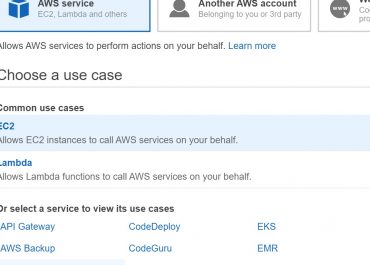
3. In Select type of trusted entity, click on the option AWS service.


4. Select which service you’d like to give permission to assume this role.


5. Select the required use case for this service. In case it merely has one use case, this use case will get chosen for you. After this, click on Next: Permissions.


6. In case it can be done, choose which policy you’d want to utilize for permissions policy, otherwise click on Create policyfor heading to a new browser tab and getting a new policy created. Upon finishing with creating this policy, close the current tab then head back to the original one. Click on the check box for the permissions policies which you’d like the service to take on.

creating a service role through CLI

AWS CloudTrail service role

AWS CloudTrail: Creating a Service Role through CLI

You will find that there are many steps for the process of creating a role from CLI.

Using a console, a lot of the role creation steps get made for you, while with the CLI, you will need to manually get each step done on your very own.

You will have to get the role created and get a permissions policy assigned to it.

With EC2 service, an instance profile needs to be created with a role added to it.

It is also optional to specify a permissions boundary for the newly created role.

How to get a role created for a specific service through the use of CLI?

  1. First off, get a role created with: aws iam create-role
  2. Then get a managed permissions policy attached to it with: aws iam attach-role-policy

Otherwise,

Get an inline permissions policy created for it with: aws iam put-role-policy

  1. You can optionally get custom attributes added to it by getting tags attached using: aws iam tag-role
  2. You can optionally get the permissions boundary specified for it using: aws iam put-role-permissions-boundary

Permissions boundary: It is in charge of the max permissions allowed for the role, as an advanced feature.

In case you choose to utilize your role with EC2 or a specific other service which relies on EC2, you will need an instance profile for storing your role.

Instance profile: Contains the role which is capable of getting attached to an EC2 instance upon launching. Just 1 role can be found in an instance profile, with no possibility for adding more.

In case your role gets created with the Management Console, you will get the instance profile instantly created having the exact name as that of your role.

How to get an instance profile created then storing your role inside using CLI?

AWS CloudTrail service role - CLI

AWS CloudTrail service role – CLI

  1. First step is to get an instance profile created using: aws iam create-instance-profile
  2. Then, you will need to get your role added to it with: aws iam add-role-to-instance-profile


  • An example Command which includes the following:

– The 1st 2 steps in the process of getting a role created and attached with permissions.

– 2 steps of instance profile creation and role addition to the profile.

– Granting permission to the EC2 service for assuming the role and getting the example_bucket S3 bucket viewed.

– Running on a client computer which runs Windows and has previously gotten your command line interface configured with your Region and account credentials.

AWS CloudTrail service role - region

AWS CloudTrail service role – region

  1. As you go through the following example, add the below trust policy in your 1st command upon the role creation. It will give permission to the EC2 service to get the role assumed.
{
  “Version”: “2012-10-17”,
  “Statement”: {
    “Effect”: “Allow”,
    “Principal”: {“Service”: “ec2.amazonaws.com”},
    “Action”: “sts:AssumeRole”
  }
}
  1. With the 2nd command, get a permissions policy attached to the role.
AWS CloudTrail service role - permission policy

AWS CloudTrail service role – permission policy

For example, in the permissions policy below you will only grant permission to the role for performing the ListBucket action upon an S3 bucket named example_bucket.

{
  “Version”: “2012-10-17”,
  “Statement”: {
    “Effect”: “Allow”,
    “Action”: “s3:ListBucket”,
    “Resource”: “arn:aws:s3:::example_bucket”
  }
}
  1. For getting the Test-Role-for-EC2role created, you will need to start with saving the previously added trust policy under the name of trustpolicyforec2.jsonand the previously added permissions policy under the name permissionspolicyforec2.json to the directory named policies located inside the local C: drive.

Later on, the below commands may be used for the following steps:

– Creating role

– Attaching policy

– Creating instance profile

– Adding role to instance profile


# First, get role created while attaching trust policy which grants permission to EC2 for assume the created role.

$ aws iam create-role –role-name Test-Role-for-EC2 –assume-role-policy-document file://C:\policies\trustpolicyforec2.json


# Get the inline policy embedded to this role for setting the actions it can take.

$ aws iam put-role-policy –role-name Test-Role-for-EC2 –policy-name Permissions-Policy-For-Ec2 –policy-document file://permissionspolicyforec2.json


# Get instance profile created since its needed for EC2 to be able to take this role.

$ aws iam create-instance-profile –instance-profile-name EC2-ListBucket-S3


# Get role added to instance profile.

$ aws iam add-role-to-instance-profile –instance-profile-name EC2-ListBucket-S3 –role-name Test-Role-for-EC2


  1. Upon launching of this EC2 instance, you will need to set your instance profile name on Configure Instance Detailspage (with console).

However, with the aws ec2 run-instances CLI command, you will need to set the –iam-instance-profile parameter.

How to Create a Role for a Service Using API?

There are a lot of steps to take for the sake of getting a role created using API.

With console a lot of those steps will be automatically made, unlike the API which requires you to manually make perform all the steps alone.

You are need to get the role created and later get a permissions policy assigned to it.

I case you choose the EC2 service, you are needed to get an instance profile created and then adding to it your role.

It is optional to specify permissions boundary for the role.

To create a role for an AWS service (AWS API)

  1. First, get a role created using: CreateRole

Role trust policy: Set a specific file location.

  1. Get a managed permissions policy attached to it using: AttachRolePolicy

Otherwise,

Get an inline permissions policy created for it through: PutRolePolicy

  1. You can optionally get your attributes customized for user through simply getting tags attached with: TagRole
  2. You can optionally get the permissions boundary specified for it using: PutRolePermissionsBoundary

Permissions boundary: Is in charge of the max permissions allowed for a role (Advanced feature).

– In case you choose to utilize your role with EC2 or a specific other service which relies on EC2, you will need an instance profile for storing your role.

– Instance profile: Contains the role which is capable of getting attached to an EC2 instance upon launching. Just 1 role can be found in an instance profile, with no possibility for adding more.

– In case your role gets created with the Management Console, you will get the instance profile instantly created having the exact name as that of your role.

How to get an instance profile created and storing your role in it using API?

  1. Get an instance profile created with: CreateInstanceProfile
  2. Get your role added to this instance profile using: AddRoleToInstanceProfile

aws lambda summary


End User Computing Use Case

According to recent surveys, over 50% of the world’s businesses run on the web platform. When it comes to running a business on the web, you must check the term called cloud computing. AWS offers cloud-based services to businesses of all kinds to market, sell and analyse their business performance.


APN Partners work as a global partner program that will help the businesses and enterprises to find out the most suitable cloud-based services on the AWS platform. The platform carries thousands of APN Partners offer a variety of services to suit your business requirements. End User Computing offers a full digital workstation to life.


End User Computing APN Partners

The best part about working with the APN Partners is you will be working with highly qualified experts who have received certifications of their experiences from various institutions. You can expect the best of services from this one-stop cloud servicing platform. Apart from this, you can also search for the reliable service provider using the APN Partner Tool Finder.


End User Computing has various categories at AWS which are listed below:

  • Migration of organization
  • Cloud-native transformation
  • Data optimization, data-monitoring and managing
  • DevOps and Managed Services


If you are looking for the best cloud-based company who can help you provide the end-user computing services on the AWS platform, then here we have listed down a few top-rated End User Computing providers with APN Partners.


1. CloudHesive

CloudHesive is a trusted cloud-service provider with top-notch security and maximum reliability. This company aims to help customers adopt and transform their organizations by using the cloud ecosystem and its services. The company is operational in many locations across the globe. CloudHesive headquarters in Floria, USA.


Services offered by CloudHesive 

  • Consulting
  • DevOps
  • Managed Services
  • Centricity
  • Call Center Solutions
  • Remote Desktop
  • Media Box Etc.


Explore the different services offered by the CloudHesive and all the information about the company and its locations from its official website.

End User Computing - CloudHesive

End User Computing – CloudHesive

2. Privo

Privo is a one-stop platform to transform your business within the AWS Infrastructure. With years of experience in the AWS platform, the hard-working and highly qualified team members of Privo offers the best of services to handle the business needs.


The company is known for providing satisfactory cloud services to plan, build, manage and optimize your business. Starting from planning out things to executing them, everything is managed by Privo’s professional team.


Services offered by Privo 

  • AWS Account Optimization
  • End User Computing
  • Planning with proper execution
  • Building projects and migrating them to cloud platform
  • Managed DevOps


Head over to the official website of Privo to know about the company’s profile, the list of services they offer and how you can avail the suitable services from the platform.

End User Computing - Privo

End User Computing – Privo

3. Innovative Solutions

Innovative Solutions specializes in migration of businesses to cloud platform and offering end user computing services to small and big enterprises. The company’s main focus is to push the productivity level by offering top-notch and latest IT services over the cloud platform.


With years of experience, Innovative Solutions has gained the trust of millions of its consumers who are regularly availing the cloud-based services offered by them. Innovative Solutions established in New York.


Services offered by Innovative Solutions

  • Development of database and application
  • Business continuity with more resources
  • Consulting
  • Consumption-based IT services
  • Data storage and archiving
  • Information Security Services
  • IT Services with End User Computing


For more information about the company’s portfolio and services, visit their official website now!

End User Computing - Innvoative Solutions

End User Computing – Innvoative Solutions

4. Ahead.Inc

Ahead.Inc provides reliable cloud services to the organizations and enterprises of all types. By identifying the business requirements, they provide effective services with proper planning and execution to improve the productivity level.


The company allows you to create a digital platform by utilizing cloud-based services. With advanced cloud infrastructure, intelligent operations and modern technology Ahead offer the best of cloud services to all the organizations and enterprises.


Services offered by Ahead.Inc

  • Modern cloud-based Infrastructure
  • Collaborative operation with AWS platform
  • Provides innovative ideas
  • Developing cloud-native applications
  • Intelligent operations for effective results


Visit their official website for more information about the company’s background and its services.

End User Computing - aheadinc

End User Computing – aheadinc

5. CMD Solutions

CMD Solutions converts an ordinary business into a high-tech business by providing AWS automation and IT services. With years of experience, the company provides the best of computing and cloud-based services. With the team of specialists and expert consultants, they show you the right path to lead a successful business.


Starting from professional computing services to developing apps and software, this APN Partner includes all types of IT services based on the cloud platform.


Services offered by CMD Solutions 

  • Professional consulting services
  • DevSecOps Consulting
  • Data management and engineering
  • Modernization of applications
  • Migration and transformation
  • Next-gen Managed Services
  • End User Computing
  • VMWare on AWS


It’s a dedicated AWS partner which works with the combined technologies and latest cloud-based IT services. For more information, you can visit the official website of CMD Solutions.

End User Computing - cmd solutions

End User Computing – cmd solutions

AWS Data and Analytics Use Case Partner