Elastic Compute Cloud

Amazon Elastic Compute Cloud (EC2)

Amazon Elastic Compute Cloud – Overview

The advent of “the cloud” has changed everything so quickly that it is hard to remember how we operated before it arrived. Cloud services, like Amazon’s Elastic Compute Cloud, are quickly changing the way business organizations deal with IT infrastructures and provide online services.

However, not too long ago, obtaining server resources entailed leasing or purchasing an actual box, usually off the rack of a server farm. And you probably know that it was not cheap and it was not instant. And that is not all; to complicate things it often required a great amount of technical knowledge.

Today, things have changed. If companies need computing power, they can simply purchase it online by easily instantiating a virtual server image on the cloud. You can quickly launch and shut down servers through application programming interfaces, which offer you greater flexibility than traditional server rooms. This is how the cloud has freed us from the various constraints of working with individual boxes.

What is Amazon Elastic Compute Cloud?

Also known as Amazon EC2, Amazon Elastic Compute Cloud is a reliable cloud infrastructure provided under AWS (Amazon Web Services). The infrastructure provides you with amazing computing resources, such as memory, on-demand.

Note that the Amazon Elastic Compute Cloud is an IaaS (infrastructure as a service) cloud. So what does that mean? This means that Amazon EC2 will provide you with computing power and other resources and you can use them for a fee. So, Amazon EC2 will provide the hardware and you will take care of running the software.

It is worth noting that a virtual private server is very similar in terms of functionality to a dedicated physical server. They are, however, more cost-efficient and you can boot them in minutes instead of buying, installing, and deploying a physical server rack.

Amazon Elastic Compute Cloud provides you with computing instances that are:

  • Scalable with respect to both computing memory and power
  • Flexible as they provide the great option to easily host various applications on multiple platforms
  • Secure because of a multi-tenant architecture (tightly coupled)

The simple and intuitive web service interface of Amazon EC2 allows you to get and configure computing capacity with less friction, providing you with full control of your computing resources while letting you run on Amazon’s proven and efficient computing environment.

Benefits of Amazon EC2

Flexible and Scalable Cloud Hosting Services

Amazon allows you to choose from multiple instance types, software packages, and operating systems. The great thing is that you can easily add multiple EC2 instances when needed to create your unique private cloud of computing resources that meets your needs and preferences.

Amazon Elastic Compute Cloud gives you the option to choose a configuration of CPU, memory, and instance storage, as well as the boot partition size that’s optimal for your specific choice of operating system (OS) and application. And your choice of OS includes various Linux distributions and Microsoft Windows Server.

Robust Security

You can easily obtain a public-facing server; it is a server that anyone can access on the Internet. It takes a lot of paperwork, official approvals, and coordination with IT team to get a public-facing server in many organizations. This is because there are more security risks that often come into play when you open up your server to anyone.

However, the good news is that setting up your public-facing server on EC2 has less risk. This is because the machine isn’t running on your company’s hardware and it can also be isolated from your network. Also, the Amazon Elastic Compute Cloud has several security groups. These groups act as virtual firewalls in order to control traffic to one or several instances. Users are allowed to establish specific rules for each security group and also modify or change rules at any time.

More Control

You have full control of your virtual servers or instances with Amazon Elastic Compute Cloud. You will get root access to each one. Also, you can easily interact with them just like you would with any machine.

So, Amazon EC2 will provide you with the same level of control and access as a conventional physical server that you operate locally in your office. You can manage compute instances through the EC2 web interface. It allows you to scale up or down, configure processor settings, and boot instances with just a couple of clicks of a mouse.

You also have the option to stop your instance while retaining important data on your boot partition. Also, you can later restart the same instance with web service APIs.

Integration

EC2’s biggest advantage, perhaps, is its native and seamless integration with the huge ecosystem of various AWS services, like RDS, SimpleDB, and SQS. This is something that no other competing solution can claim. With more than 170 services, we think that no other cloud computing network can claim the depth, breadth, and flexibility that AWS offers.

EC2 Instances

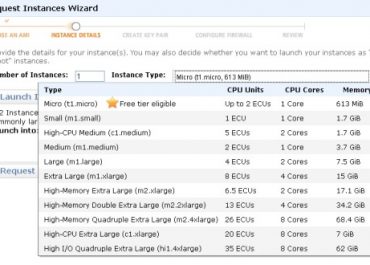
You can do anything with EC2 that you do with a computer. For example, data scientists leverage EC2 instances for crunching large data sets. On the other hand, animators use these instances to render amazing 3D worlds. It is worth noting that instances come in various different hardware configurations (CPU and memory) called “types”. They are often grouped into six families.

EC2 Instance Categories

Some of the Instances of families are:

  • Accelerated Computing
  • General Purpose
  • Memory-optimized
  • Compute-optimized

These families have a variety of instance types, which are resources optimized for particular use cases.

You have four primary purchasing options when it comes to paying for AWS. These options are Reserved Instances, On-demand Instances, Spot Instances, and Dedicated Hosts. Note that each pricing option is specifically tailored for benefitting a particular usage behavior.

Amazon EC2 is great as it passes you the financial benefits of Amazon’s huge scale. You will pay a very low rate for using the computing capacity. You can see Amazon EC2 Instance Purchasing Options to get a more detailed idea.

Looking for help launching your first Amazon EC2 instance? Cloudysave can offer you expert assistance and guidance with launching cloud instances via AWS and Amazon EC2


aws lambda scaling

AWS Lambda Scaling

Understanding AWS Lambda Scaling

AWS Lambda is a serverless computing application. In other words, it allows users to run code without provisioning or managing servers. One of the many reasons why AWS Lambda has become so popular is because it is massively scalable. Let’s take a look at what this means in practice.

AWS Lambda is all about burstable concurrency

When you fire up AWS Lambda, you start your function. AWS Lambda creates an instance for it and runs its handler method to process the event. If that function returns a response without any intervening activity, such as another function being invoked, then AWS Lambda simply waits for you to tell it what to do. 

If, however, you create another event, let’s say you invoke the function again, AWS Lambda will create another instance for it and work on them both together. Assuming more events are created, AWS Lambda will create new instances for them until either all your functions are being run as requested or you reach your burstable concurrency limit. 

After this initial burst, AWS will aim to assign them to existing instances as they become available if possible and only create new instances if they are not.

The concurrency limit is the maximum possible number of instances serving requests

A simple way to picture the concurrency limit is to see it as a ceiling for your events. As your events increase in number, they move closer to the ceiling until finally, they bump up against it. 

If you want to push the analogy even further, AWS Lambda actually has two ceilings, you can think of them as the main ceiling and an attic. The first, main, ceiling is for your initial round of traffic and the second, the attic, is for scaling additional functions upwards until the final limit is reached.

At that point, your options are either to reduce the number of events or increase the height of the ceiling (i.e. buy more concurrency).

Default concurrency limits vary by region

As is par for the course with AWS, default concurrency limits vary by region. Currently, limits for the initial burst are as follows:

3000 – US West (Oregon), US East (N. Virginia), Europe (Ireland).

1000 – Asia Pacific (Tokyo), Europe (Frankfurt).

500 – Other Regions.

Those huge differentials underline the importance of choosing the best region for your needs. For example, even if you work with data from the EU and have to think about GDPR, you would still be able to choose between Ireland and Frankfurt and Ireland gives you much higher concurrency.

From this initial ceiling, your function can continue to scale at a maximum of 500 instances each minute until it reaches the default regional concurrency limit, which starts at 1000 instances.

A brief walkthrough of AWS Lambda scaling in practice

You start your function and as it processes, you begin another and another. AWS Lambda keeps creating new instances until you reach your burstable concurrency limit. In other words, it scales vertically. You keep creating events and AWS Lambda alters its process so that it tries to assign them to existing instances before it creates new ones. This results in linear scaling. 

If you initiate more than 500 events per minute and/or you reach your final concurrency limit, then you will receive a throttling error (429 status code) and your requests will fail. You can, however, raise the concurrency limit (for a price) via the support center. If the reason for the overload is only temporary remember to switch it back when you’re finished and if it’s long-term, remember to update your cost projections accordingly.

Pro-tip, you can use a service called “reserved concurrency” to ensure that designated functions have a pool of concurrency allocated for their sole use. This is different from provisioned concurrency, which we’ll explain later.

AWS Lambda and latency

If your initialization code takes a long time to load, then you are likely to see this reflected in your average and percentile latency. There are two ways to address this. The first is to have a good look at your code and see if it can be improved. In other words, if you can address a problem at its root, then you should probably do so.

If, however, this is not an option or you are satisfied that your code is as good as it can be, then you could use provisioned concurrency. Basically, provisioned concurrency keeps functions initialized and hyper-ready to respond and as you’d expect from AWS Lambda, you only pay for the amount of concurrency that you configure and for the period that it is configured.

You can even take provisioned concurrency to the next level with Application Auto Scaling. This basically allows you to create a policy that adjusts provisioned concurrency levels automatically based on the Lambda utilization metric.

aws data transfer cost

Taming AWS Data Transfer Costs

It’s unfair to say that AWS data transfer costs are designed to be opaque and confusing. It is, however, probably very fair to say that AWS data transfer costs can easily get businesses in a muddle. The good news is that if you understand the underlying principles, you can usually work out what you need to do to tame them. Here is a quick guide to what you need to know.

Taming AWS data transfer costs starts with building the right infrastructure

At the risk of stating the extremely obvious, the best way to tame your AWS data transfer costs is to minimize both the amount of data you transfer and the distance over which you transfer it.

While this is a very straightforward principle, the nature of the cloud can make it something of a challenge to implement in practice, especially if you take a piecemeal approach to developing your cloud infrastructure. 

Quite simply, if there is a corporate culture of “just adding bits here and there” as the perceived need or want arises, then there is a very good chance you’re quickly going to end up with cloud infrastructure which is all over the place and that’s even before you consider the distinct possibility that infrastructure will be left active long after it has ceased to be needed (if it was ever really needed at all).

In short, do whatever you need to do to ensure that your AWS cloud infrastructure is developed in a considered manner rather than just thrown together.

Importing data from the internet is usually either free or very affordable

You’re probably not going to have a great deal of flexibility with regards to how much data you import from the internet, but the good news is that importing it into the headline AWS services (e.g. EC2 instances, RDS instances, S3 storage) is either free or very affordable.

The cost of exporting data to the internet can vary greatly depending on the region

AWS regions are an interesting topic. On the one hand, compliance reasons may limit your options. On the other hand, even considering compliance, there may be some room to maneuver and if there is, it’s worth considering whether or not you could use this to your advantage. 

For example, even if compliance reasons require you to keep data in the U.S. then you still have four regions from which to choose, likewise if you need to keep it in the EU, you have four/five regions from which to choose (London is due to exit the EU shortly).

You may even want to consider using different regions for different purposes. For example, you could use your nearest region when you want to minimize latency and a more economical region when you’re happy to wait a bit longer for your tasks to complete if it means a lower cost.

Transferring data between services is where life can get complicated

This is the part where you really need to read the fine print. As a rule of thumb, you will get free AWS data transfers within an Availability Zone and it is very likely (although not completely guaranteed) that you will get free AWS data transfers within a region. With some services, however you can get free data transfers within a region for certain operations but not for others. For example, backup, restore, load, and unload operations between Amazon Redshift and Amazon S3 are all free (within the same region) but other operations are chargeable.

Why AWS data transfer costs can still end up being higher than you think they should

Assuming you have sorted out your cloud infrastructure properly so that data is flowing the way it should, then the likeliest reason why your AWS data transfer costs are escalating more than you think they should is because you are transferring more data than you realize.

The question then becomes whether or not you will just have to live with this or whether you can adjust the behavior of your application to reduce the costs without excessive negative impact on the user experience.

For example, let’s say you have an application which regularly requests large quantities of data from S3. If this app is an essential, customer-facing app which needs to work at maximum speed, then you may just have to live with this and swallow the cost. 

If it’s not, however, then you could look at reducing the number of requests it makes (assuming that the amount of data transferred per request stays the same instead of increasing to compensate for the fact that the number of requests has been reduced). Alternatively, you might want to see if you could live with slower storage, such as Amazon Glacier, which can actually work a whole lot more quickly than its name might suggest.

aws ec2 instance types

Understanding AWS EC2 Instance Types

AWS EC2 instance types number in the hundreds and the catalogue grows every year, grouped into six families by the kind of work each is built for. New generations arrive every year and older ones move to previous-generation status, so the useful skill is not memorising the list — it is being able to read an instance name and know roughly what you are getting.

This guide covers the six families, how to decode an instance name, and how to narrow a shortlist down to one type without guessing.

How to read AWS EC2 instance types from the name

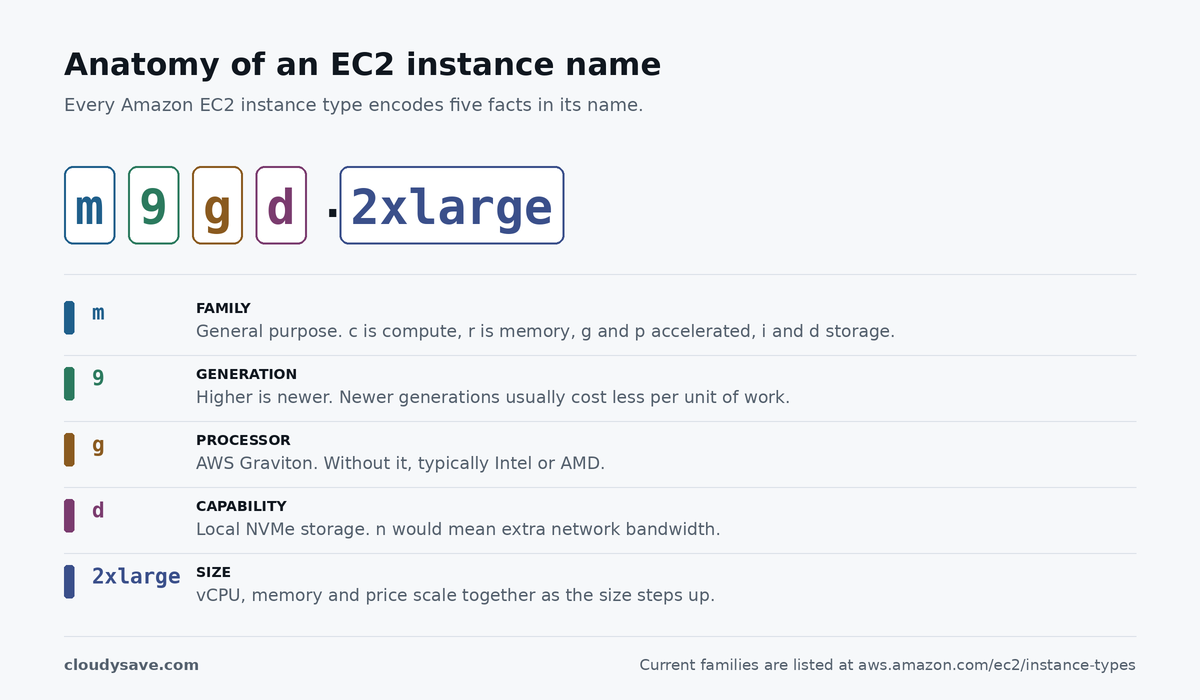
AWS EC2 instance types naming convention: m9gd.2xlarge split into family, generation, processor, capability and size
The five facts encoded in every AWS EC2 instance type name.

Every instance name follows the same pattern, and once you can parse it the catalogue stops being intimidating. Take m9g.xlarge:

  • m — the family. m is general purpose, c compute optimised, r memory optimised, g and p accelerated computing, i and d storage optimised, hpc high performance computing.
  • 9 — the generation. Higher is newer, and newer generations generally deliver better price-performance than the one they replace.
  • g — the processor. g indicates AWS Graviton; instances without it typically run Intel or AMD silicon.
  • d, when present — a capability suffix. d means local NVMe storage, n means additional network bandwidth.
  • xlarge — the size. Sizes scale roughly linearly in vCPU, memory and price, so 2xlarge is about twice the resources of xlarge.

That means m9gd.2xlarge reads as: general purpose, ninth generation, Graviton, with local NVMe, at the 2xlarge size. You can decode a family you have never seen before without looking anything up.

The six AWS EC2 instance types families

General purpose

A balanced ratio of compute, memory and networking. The right default when you do not yet know which resource your workload leans on — web servers, small databases, development environments, microservices. The m families sit here, alongside the burstable t families.

Burstable instances work differently and deserve care. They run at a baseline CPU level and accrue credits while below it, then spend those credits to burst above baseline. That suits spiky, mostly-idle workloads and punishes sustained load, because once credits are exhausted performance drops back to baseline or you start paying for surplus credits.

Compute optimised

A higher ratio of vCPU to memory, on processors chosen for sustained compute throughput. Batch processing, high-traffic web front ends, media transcoding, scientific modelling, dedicated game servers. The c families.

Memory optimised

Large amounts of RAM per vCPU, for workloads whose working set has to stay in memory. In-memory caches, high-performance relational databases, real-time analytics over big datasets. The r, x and z families.

Accelerated computing

Instances with hardware accelerators — GPUs, or purpose-built silicon such as AWS Trainium and Inferentia — that perform certain calculations far faster than a general CPU. Machine learning training and inference, graphics rendering, computational fluid dynamics. The g and p families.

Storage optimised

Very high local disk throughput and IOPS, with storage physically attached to the host rather than reached over the network as EBS volumes are. NoSQL databases, data warehouses, distributed file systems, search. Some use NVMe SSDs for low latency, others dense HDDs for sequential throughput per terabyte.

The important caveat: local instance storage is ephemeral. Stop or terminate the instance and the data is gone. It is for scratch space, caches and replicated data, never for the only copy of anything.

HPC optimised

The newest category, built for tightly coupled high performance computing that runs across many nodes at once and is limited by inter-node communication. Weather modelling, crash simulation, computational chemistry. The hpc families.

AWS maintains the authoritative list of current families and their specifications on the EC2 instance types page, and marks superseded families under previous generation instances. Check there rather than trusting any third-party list, this one included — the catalogue changes several times a year.

Choosing between AWS EC2 instance types without guessing

Picking an instance is a process of elimination, in this order:

  1. Identify the constraining resource. Is the workload waiting on CPU, memory, disk or network? That answers the family question on its own, and it is the one step people skip.
  2. Take the newest generation available in your region. Newer generations usually cost less per unit of work than the ones they replace, so staying on an old generation is a quiet, recurring overpayment.
  3. Consider Graviton. AWS’s own processors generally offer better price-performance for workloads that can run on ARM, which covers most modern language runtimes. The migration cost is real but usually one-off.
  4. Size from measurements, not estimates. Start conservatively, then right-size against actual CPU and memory utilisation. Oversizing at launch is the most common source of avoidable EC2 spend, because nothing about an over-provisioned instance ever alerts you.

Sizing and purchasing are separate decisions, and both affect the bill. Once the type is settled, how you buy the capacity determines what you actually pay — On-Demand, Savings Plans, or Spot for interruption-tolerant work. Our guide to the factors that affect EC2 pricing covers how those interact, and the AWS Pricing Calculator will model a specific configuration against current published rates.

Matching AWS EC2 instance types to real workloads

The families describe hardware shapes, not applications, so the mapping from “what I am running” to “which family” is worth making explicit. A few common cases:

  • A production web application. General purpose, fixed performance rather than burstable, sized from observed traffic and fronted by Auto Scaling for peaks.
  • A relational database. Memory optimised almost always, because query performance collapses once the working set stops fitting in RAM and no amount of extra CPU recovers it.
  • A CI build fleet. Compute optimised, on Spot capacity. Builds are interruption-tolerant by nature, which is exactly the workload Spot exists for.
  • Machine learning inference. Accelerated computing, but check whether the model actually saturates a GPU before paying for one. Plenty of inference workloads run more cheaply on CPU.
  • A log or analytics store. Storage optimised, with the caveat that local disk is ephemeral and the durable copy belongs somewhere else.

Two of these decisions are frequently made backwards. Databases get put on general purpose instances because they were already there, and GPU instances get provisioned for inference workloads that never needed them. Both are expensive and both are invisible on the bill until someone goes looking, because nothing in AWS flags a badly-matched instance type.

Common mistakes when picking AWS EC2 instance types

  • Staying on an old generation out of inertia. A workload that has run on the same family for four years is almost certainly overpaying for the throughput it gets.
  • Using burstable instances for steady load. Credits run out, performance drops, and the incident looks like an application fault rather than an instance choice.
  • Sizing for peak instead of scaling to it. Auto Scaling exists precisely so you do not have to run peak capacity around the clock.
  • Treating local NVMe as durable. It is not, and the lesson is usually expensive.
  • Choosing the family from the name. “Compute optimised” sounds like the fast one. It is only fast for the workloads it is shaped for.
aws s3 glacier storage

The basics of AWS S3 Glacier storage

AWS S3 Glacier storage is intended to be a long-term archiving solution, which is both affordable and secure. It’s currently divided into two sub-services Amazon S3 Glacier and S3 Glacier Deep Archive, each with its own access options and pricing structure.

AWS S3 Glacier storage is not as slow as its name might suggest

If you use the standard AWS S3 Glacier, then you have a choice of three retrieval options:

Expedited retrievals typically return data in 1-5 minutes

Standard retrievals typically return data in 3-5 hours

Bulk retrievals typically return data in 5-12 hours

If you opt for AWS S3 Glacier Deep Archive, then you have a choice of two retrieval options, standard and bulk, which typically return data in 12 hours and 48 hours respectively. Take a look at our advanced aws S3 cost calculator built by our CloudySave’s cloud economists.

In short, AWS S3 Glacier has moved on from the days when retrievals really were as slow (and sometimes as painful) as you might think from the name. It isn’t remotely suitable for systems where fast access is a must (for example, the average customer-facing app) but these days it can certainly be used for the likes of active archiving.

AWS S3 Glacier storage is exceptionally robust

According to AWS, S3 Glacier storage is designed for 99.999999999% durability with 99.9% availability. To achieve this, data objects are spread across multiple (at least three), geographically-separated Availability Zones (in the same region) so that the data can resist the destruction of one entire Availability Zone.

AWS S3 Glacier has extensive security and compliance capabilities

AWS S3 Glacier utilizes Amazon S3 Object Lock to create WORM (Write Once Read Many) storage. It also supports integration with AWS CloudTrail to log, monitor and retain storage API call activities and has three different forms of encryption. This means that AWS S3 Glacier storage is compliant with the requirements of just about any regulatory program you can name (and probably many you can’t). In addition to supporting key U.S. focused compliance programs such as SEC Rule 17a-4, HIPAA/HITECH, FedRAMP and FISMA, it supports the international PCI-DSS program and even the EU’s GDPR scheme.

AWS S3 Glacier has extensive integration capabilities as well as third-party support

AWS services all tend to integrate well with each other and, in spite of the relatively slow pace at which it operates, AWS S3 Glacier is no exception. They also tend to be well-supported by third-party vendors and again AWS S3 Glacier is no exception, quite the opposite in fact. The fact that AWS S3 Glacier offers competitive pricing and high reliability means that it’s often the cloud solution of choice for third-party vendors working in areas such as archiving, backup & recovery and disaster recovery.

AWS S3 Glacier makes a superb replacement for tape libraries

Archiving has long been a sensitive issue for companies. No storage medium is ever guaranteed to be 100% completely secure and even if somebody did manage to invent a storage medium which was guaranteed not to degrade or be damaged (at least not for a certain period if stored properly), then you would still have the risk of accidental damage or theft.

This is exactly why some companies adopted a strategy of “double-archiving” using hard drives and magnetic tapes. Others opted for magnetic tapes purely for reasons of affordability compared to the other solutions available at the time. In either case, there are numerous companies, including many SMBs, which are currently stuck with libraries of magnetic tapes which require specialized maintenance. Getting these libraries onto a solution such as AWS S3 Glacier can make life easier for everyone at a very affordable cost.

Any company which is considering implementing a magnetic tape library is strongly recommended to check out AWS S3 Glacier very thoroughly before making a final decision because this approach often requires significant upfront investment (and ongoing maintenance costs), both of which can be avoided with AWS S3 Glacier storage.

AWS S3 Glacier is also great for digitization projects

The paperless office is great in theory, but for many companies there is some way to go before this becomes a reality. In some cases, there are legal issues at play, which require certain documents to be kept in paper format (although it can be very wise to have digital copies of them as a back-up). In many cases, however, companies have simply built up significant archives in paper format (or photos or other analog media) and are struggling to find the time to go through them properly.

AWS S3 Glacier offers a great “interim” solution, in that it can affordably hold large quantities of data for an extended period, thus making it possible for companies to “digitize first and check later”. This can make it possible to clear out valuable office real estate without the risk of losing content which still has genuine value to the organization.

aws ec2 pricing calculator

What your AWS EC2 pricing calculator doesn’t tell you

The AWS EC2 pricing calculator is a very handy tool and if you use it properly, it can help you to save a lot of money. Like all tools, however, you need to understand it to use it properly. This means not just understanding what it does do, but understanding what it doesn’t do.

The AWS EC2 pricing calculator just processes the information you enter

The AWS EC2 pricing calculator does your pricing for you, it doesn’t do your thinking for you. In other words, if you tell it you want a certain configuration, it will tell you how much that configuration will cost. It will not tell you whether or not that configuration is a good idea. In particular, it will not tell you whether or not that configuration is sized effectively.

Right-sizing is the key to reducing the cost of EC2

Right-sizing is one of the keys to cost optimization in general and it’s particularly relevant to storage solutions such as EC2. This means that it literally pays to make time out of your busy schedule to keep an eye on your EC2 usage and make sure that it actually does reflect your needs – no less and no more. With that in mind, here is some guidance on how to manage EC2 right-sizing effectively.

Focus on the areas of biggest spend

Even though little savings can add up, bigger savings can add up even more quickly. This means that your priority should usually be the places where you are currently spending the most money.

Ensure that you’re only working on areas which are likely to be stable for the next few months

On similar logic, you also want to focus your efforts on areas which are likely to be stable for the next few months (at least) otherwise all your work could just be wasted when it is changed.

Keep an eye open for areas which are due to change soon

You don’t (usually) want to go through a right-sizing project for these areas as they are now, but you do want to know about any changes which are due to happen as this is an opportunity to ensure that new areas are right-sized from the get-go (and to schedule checks to ensure that they continue to be right-sized as time goes on). 

In particular, you want to give yourself plenty of time to think about what reserved instances you’re going to need, so that predictable work is done at the most economical price and you’re not left crossing your fingers and hoping to get lucky and pick up spot instances to save your budget.

Pay attention to AWS’ instance lifecycle

AWS uses a “carrot-and-stick” approach to getting customers to migrate off instance types it wants to retire and onto new ones it is introducing. It increases the prices of the former and makes the latter more economical by comparison. This means that being prepared to use different instance types can save a whole lot of money. Try to make a point of checking in with the AWS website to keep up to date on what Amazon has planned as this can give you a good hint as to what the pricing trends are likely to be going forward.

Practice good EC2 hygiene

To begin with, make sure that you apply complete and accurate tagging to all your resources. This step can be very easy to miss when you’re busy, but it can make life a lot easier when you want to analyze specific areas of your application environment. 

You might also find it very helpful to define a new gate in your continuous delivery workflow during the staging process to make it easier to confirm your capacity requirements before deploying to production. Ideally, you will also want to install an agent to monitor your memory usage, which can significantly influence any decisions relating to EC2.

Work off exact usage information not guesses

The key point here is that you need to factor in all aspects of your computing resource needs when taking what type of EC2 instance you need and what size it should be. 

Currently, AWS reporting will show you CPU, and I/O utilization for each volume attached to your EC2, plus data on the network usage of each of the network interface cards attached to your EC2. What it doesn’t currently provide is data on memory utilization, hence the advice to install an agent, since the alternative may be to work off educated guesses, which may be better than nothing, but not necessarily a great deal better.

Consider using third-party tools

Accurate data on actual usage will give you a solid basis for working out what kind of resources they will require. In particular, you’ll want to compare using general-purpose EC2 instances with optimized instances. This can be done manually, but if you undertake this exercise regularly, you may find that third-party tools quickly pay for themselves, not just in cost savings but in saving you time, energy and possibly frustration.

Posted in EC2